Wednesday, March 16, 2016

Using Mobile Services with MS-Azure ASP.NET

To create a Mobile service we need a Windows Azure subscription. Please visit to http://azure.microsoft.com/en-us/ and create a free trial subscription.
Step 1: Open the Windows Azure Portal using http://manage.windowsazure.com. Log in with your subscription credentials. On the portal, select Mobile Services. In the lower left section of the portal, select New and create Mobile Service with the following option:
create-mobile-service
On clicking on Create, the following window will be displayed where we need to enter some information about the Mobile Service:
portal_createserv
The options for database in the Dropdown are Create a new SQL instance and use the Existing Database. TheBACKEND dropdown has the following options for runtime:
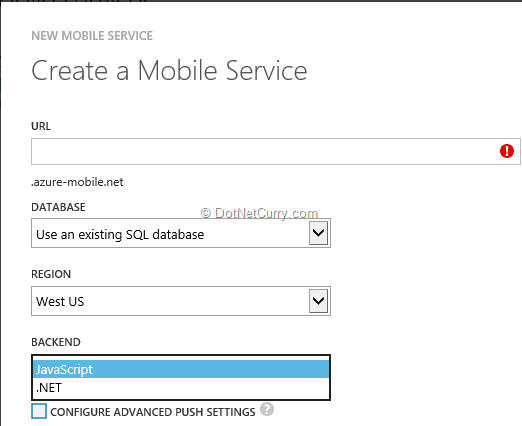
azure-backend-options
These options generate APIs for performing operation on the backend table data. After entering Mobile Service details, click on the Next arrow and specify the Database Settings as shown in the following figure:
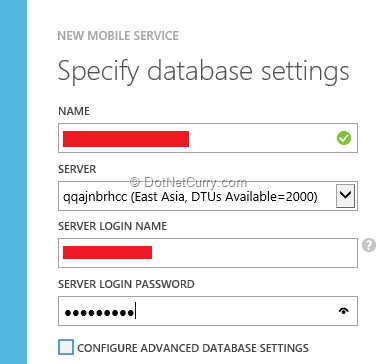
azure-db-settings
After entering the necessary information, click on the OK (tick sign) and the Mobile Service will be created as shown in the following figure:

portal_mob_service_created
Step 2: Once the Mobile service is created, click on it and the following page will get displayed:
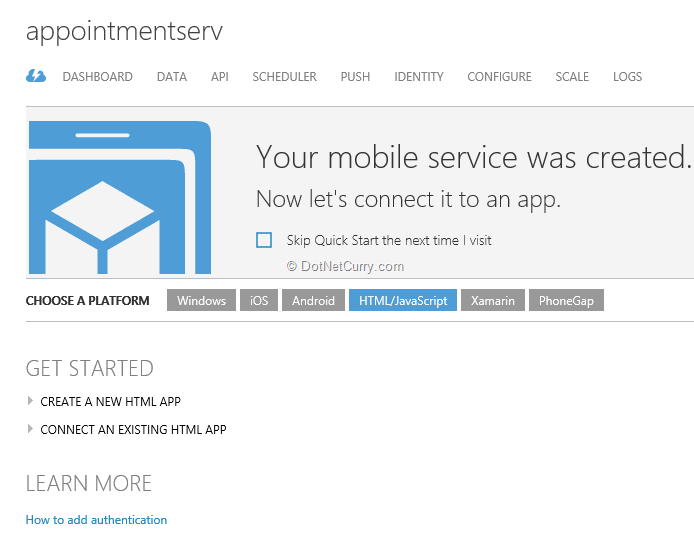
mobile-service-details
This page provides information about the platform for consuming the Mobile service. We have options like Windows, iOS, Android, HTML/JavaScript, etc. The portal provides a ready App for guiding us through the use of Mobile Services. On the top of the page, we have options to create DATA Store Table, Scheduler, PUSH configuration, the Host configuration, etc.
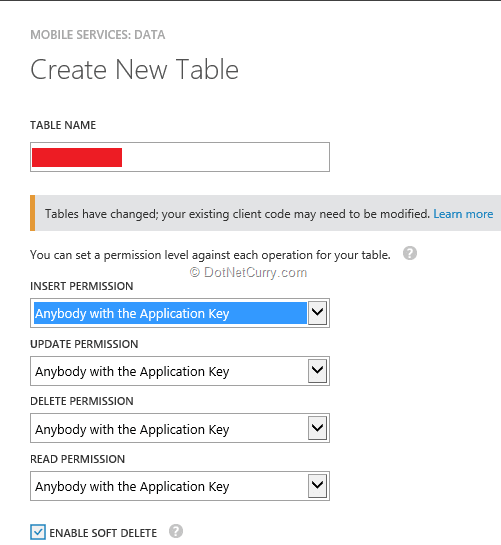
Step 3: To create a Data Table, click on DATA. This will show the Page which contains List of tables for the Mobile Service. Click on Create at the bottom of the page and the Create New Table window will be displayed. In this window, Enter Table information as shown in the following figure:
create-new-table
Create an Appointments table. Here we need to define permissions for performing CRUD operations on the table.
Step 4: Once the table is created, click on the table name. A new page will be displayed with options such as BROWSE, SCRIPT COLUMNS and PERMISSIONS. Click on the COLUMNS option to view the default columns of the table as shown in the following figure:
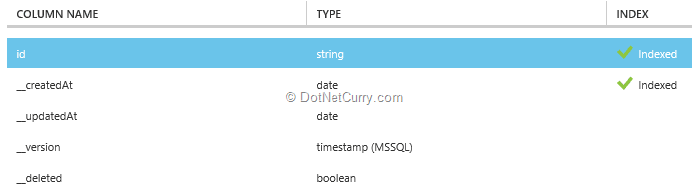
default-coumns
To add new columns, click on the Add Column link at the bottom of the page. The Add Column dialog gets displayed:
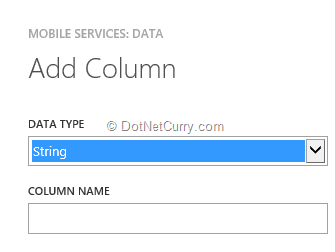
create-column
For the table, create the following columns:
  • Persontomeet
  • Meetinglocation
  • Meetingdate
  • Meetingstatus
  • Createdby
  • Description
The final definition of the table will be as follows:
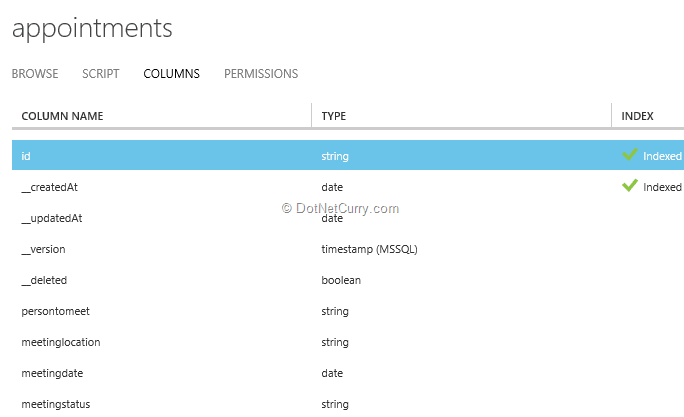
table-definition

Creating ASP.NET MVC Client Application for Windows Azure Mobile Services

In this section, we will develop an ASP.NET MVC 5 client for consuming Mobile Service. This client will make use of the Mobile Service URL and the associated key to perform Operations with Mobile Service.
Step 1: Open Visual Studio 2013 and create a new ASP.NET MVC application. Make sure that you select the MVC project which will provide ready controllers for Account, used for Authentication.
Step 2: In the controller’s folder, add a new AppointmentsController with the Index method implemented as follows:
[Authorize]
public ActionResult Index()
{
    //var uSplit = User.Identity.Name.Split('@');
    ViewBag.UserName = User.Identity.Name;
    return View();
}
The Index Action method is applied with the [Authorize] filter, this means that the end-user must log-In before accessing Appoint Index View.
Step 3: Run the application and create two users for the application using Register View under AccountsController. The current application uses ‘user1@user.com’ and ‘user2@user.com’.
Step 4: In this MVC project using NuGet package manager add references to the latest jQuery, knockout library and bootstrap 3.3.2 library.
Step 5: Scaffold an empty Index view form the Index action method of the AppointmentsController.
Step 6: In the Index.cshtml, add the following code:
<html>
<head>
    <title>The Mobile Servive App</title>
    <style type="text/css">
        table, td {
          border:double;
        }
        .c1{
            width:200px;
        }
        #dvappointments {
         height:400px;
         width:1000px;
         overflow:visible;
        }
    </style>
    <link href="~/Content/bootstrap.css" rel="stylesheet" />
    <link href="~/Content/themes/base/all.css" rel="stylesheet" />
    <link href="~/Content/Site.css" rel="stylesheet" />
    <script src="http://ajax.aspnetcdn.com/ajax/mobileservices/MobileServices.Web-1.2.5.min.js"></script>
    
</head>
<body>
    <form class="form-horizontal" role="form">
        <h1>The Meeting Planner</h1>
        <div>
                 <div>
            <table>
                <tr>
                        <td>
                            <label for="persontomeet" class="control-label">Person To Meet</label>
                        </td>
                        <td>
                            <input type="text" id="persontomeet" class="form-control c1"
                                    data-bind="value:PersonToMeet"/>
                        </td>
                </tr>
                <tr>
                        <td>
                            <label for="meetinglocation" class="control-label">Meeting Location</label>
                        </td>
                        <td>
                            <input type="text" id="meetinglocation" class="form-control c1"
                                   data-bind="value:MeetingLocation" />
                        </td>
                </tr>
                <tr>
                        <td>
                            <label for="meetingdate" class="control-label">Meeting Date</label>
                        </td>
                        <td>
                            <div class="controls">
                                <input id="meetingdate" type="text"
                                       class="date-picker form-control c1"
                                       data-bind="value:MeetingDate" />
                            </div>
                        </td>
                </tr>
                <tr>
                    <td>
                        <label for="lstmeetststus">Meeting For</label>
                    </td>
                    <td>
                        <select id="lstmeetststus" class="form-control c1"
                                data-bind="options:MeetingType,optionsCaption:'Select Meeting Type',value:SelectedMeetingType"></select>
                    </td>
                </tr>
                <tr>
                    <td>
                        <label for="description">Meeting For</label>
                    </td>
                    <td>
                        <textarea id="description" class="form-control c1"
                                  data-bind="value:Description"></textarea>
                    </td>
                </tr>
            </table>
        </div>        </div>
        <input type="button" id="btnsave" value="Save" class="btn btn-primary"
               data-bind="click:$root.save" />
        <div id="dvappointments">
            <table>
                <thead>
                    <tr>
                        <td>Person To Meet</td>
                        <td>Person Location</td>
                        <td>Meeting Date</td>
                        <td>Purpose</td>   
                        <td>Description</td>
                    </tr>
                </thead>
                <tbody data-bind="foreach:Appointments">
                    <tr>
                        <td>
                            <span data-bind="text:persontomeet"></span>
                        </td>
                        <td>
                            <span data-bind="text:meetinglocation"></span>
                        </td>
                        <td>
                            <span data-bind="text:meetingdate"></span>
                        </td>
                        <td>
                            <span data-bind="text:meetingstatus"></span>
                        </td>  
                        <td>
                            <span data-bind="text:description"></span>
                        </td>
                    </tr>
                </tbody>
            </table>
        </div>
    </form>
      
    <script src="~/Scripts/jquery-2.1.3.min.js"></script>
    <script src="~/Scripts/jquery-ui-1.11.2.min.js"></script>
    <script src="~/Scripts/bootstrap.min.js"></script>
    <script src="~/Scripts/knockout-3.2.0.js"></script>
    <script type="text/javascript">
        //The variable used to read the current login user
        var user = '@ViewBag.UserName';
         $(document).ready(function () {
             //Set the Style for data
            $(".date-picker").datepicker({ minDate: 0, maxDate: "+1M +10D" });
         });
         var appointmentVM = function () {
             //The mobile service client object
             var client = new WindowsAzure.MobileServiceClient(
                   "https://appointmentserv.azure-mobile.net/",
                 "<Your key here>");
             //The Mobile Service Table object
             var appointmentTable = client.getTable("Appointments");
             //Observables for Accessing data from end-user
             var self = this;
             self.PersonToMeet = ko.observable("");
             self.MeetingLocation = ko.observable("");
             self.MeetingDate = ko.observable();
             self.MeetingStatus = ko.observable();
             self.Description = ko.observable("");
             self.Appointments = ko.observableArray([]);
             self.MeetingType = ko.observableArray(["Official", "Personal"]);
             self.SelMeetingType = ko.observable();
             self.SelectedMeetingType = ko.observable();
             //Logic to Select the Meeting status
             self.SelectedMeetingType.subscribe(function (text) {
                 if (text !== 'undefined') {
                     self.SelectedMeetingType(text);
                 }
             });
             //Function to Save Appointment
             self.save = function () {
                 var appointment = {
                    persontomeet: self.PersonToMeet(),
                      meetinglocation: self.MeetingLocation(),
                     meetingdate: self.MeetingDate(),
                      meetingstatus: self.SelectedMeetingType(),
                      createdby: user,
                      description: self.Description()
                 };
                 //Insert the Appoint Information
                 appointmentTable.insert(appointment).done(function (res) {
                     getMeetings();
                 }, function (err) {
                     alert("Error " + err.request + "   " + err.request.status);
                 });
             };
             getMeetings();
             //Function to Get All Appointments for the login user
             function getMeetings() {
                 var query = appointmentTable.where({createdby:user});
                 query.read().done(function (appointments) {
                     self.Appointments(appointments);
                 }, function (err) {
                     alert("Error " + err.request + "   " + err.request.status);
                 });
             };
         };
            ko.applyBindings(new appointmentVM());
    </script>
</body>
</html>
The above code performs the following operations:
  • The knockout ViewModel, appointmentVM creates a client object of the Mobile service based on the URL and the access key associated with it.
  • The, <script src="http://ajax.aspnetcdn.com/ajax/mobileservices/MobileServices.Web-1.2.5.min.js"></script> provides access to the MobileServiceClient object. Using getTable() function of this object, we can access references of the Mobile Service Table; in our case Appointment.
  • The code defines observables for data-binding with the HTML UI. Using these observables, we can access data entered by the end-user.
  • The save() function contains code for inserting the appointment data entered by the end-user. This function calls insert() function of the MobileServiceClient to insert data in the table.
  • The getMeetings() function queries the Table and receives data for a current login user.
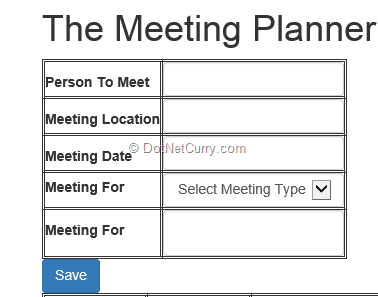
Run the application, Login with the credentials (user1@user.com) and the following page will get displayed.
meeting-planner
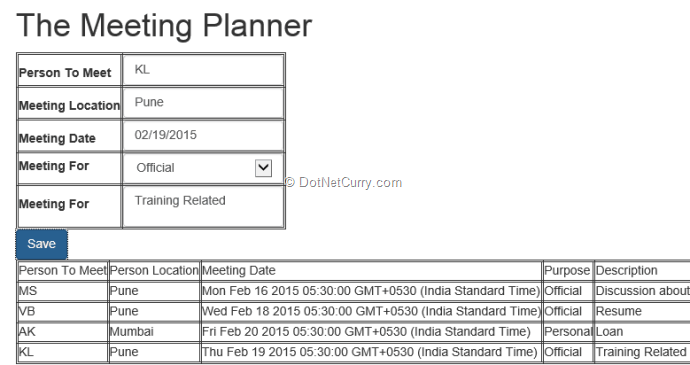
Enter Appointment details. After clicking the Save button, you should see the following appointment details:
appointment-details
The Table in the above figure displays only appoints saved by the current logged in user.
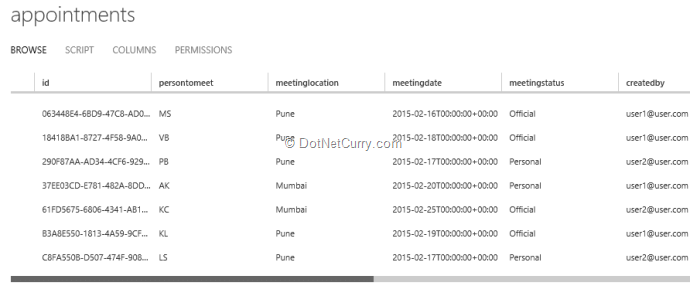
The inserted data can be viewed in the portal for the Appointments table:
appointments
This is the MVC client application, in short a web application used by the end-user to save his appointments information using Mobile Services on the cloud. The advantages of this approach are the same. The end-user can access his appointments information from any device having the client-application on it, and by consuming the same mobile service. Mobile services provide client-libraries to build application on any client-device.
Deploying the MVC Client Application
The Mobile service by default is accessible to the localhost, but what if we want to deploy the current MVC application on the cloud using a Web Site? In that case it will have a different domain. This must be configured in the Cross-Origin resource sharing configuration section of the Mobile service.
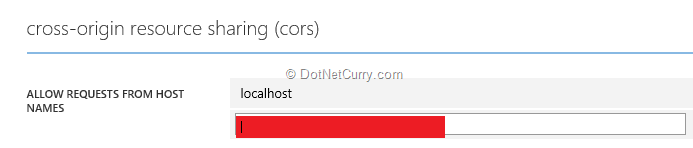
Deploy the MVC application. If you haven’t deployed an MVC application to the cloud, here’s a step-by-step getting started guide for you - Deploying ASP.NET MVC Web Site on Windows Azure. In the portal, open theAppointmentServ mobile service by double clicking on it. Open the Configure Tab and locate the Cross-Origin resource sharing (cors). Provide the host name. For e.g. as *. azurewebsites.net cloudapp.net:
cors

Thursday, February 25, 2016

Backup Azure Web sites

provides a reliable web sites hosting infrastructure where sites data is replicated in Azure data centers for redundancy. However it is still important to do regular backups of the site’s content and databases in order to be able to recover from a human error, problematic upgrade or a hacking attempt. With the Azure Store Add-On Cloud Cellar it is easy to setup automated backup task that will run on a predefined schedule and will backup site content and database. This post explains how to do it.
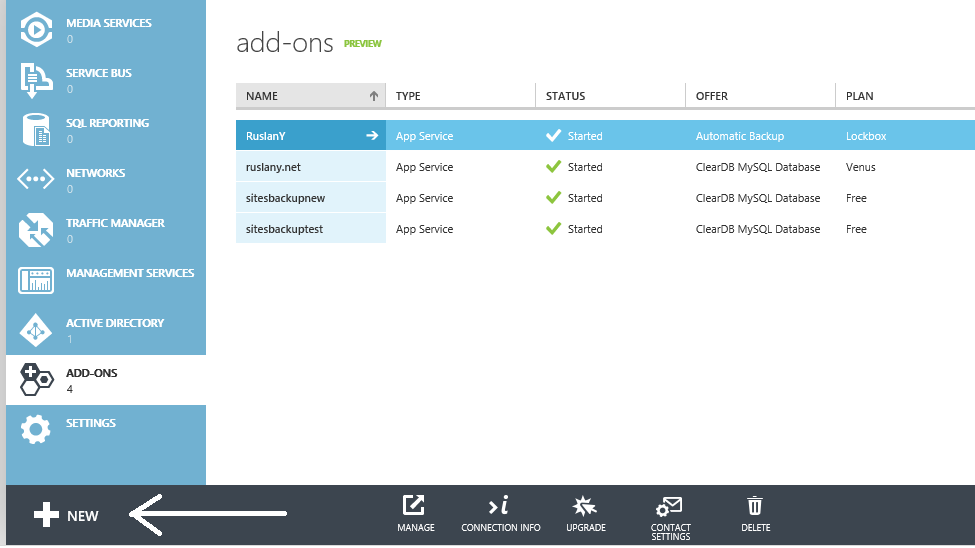
To create an automated backup go to Windows Azure Portal Add-Ons tab and click “NEW”:
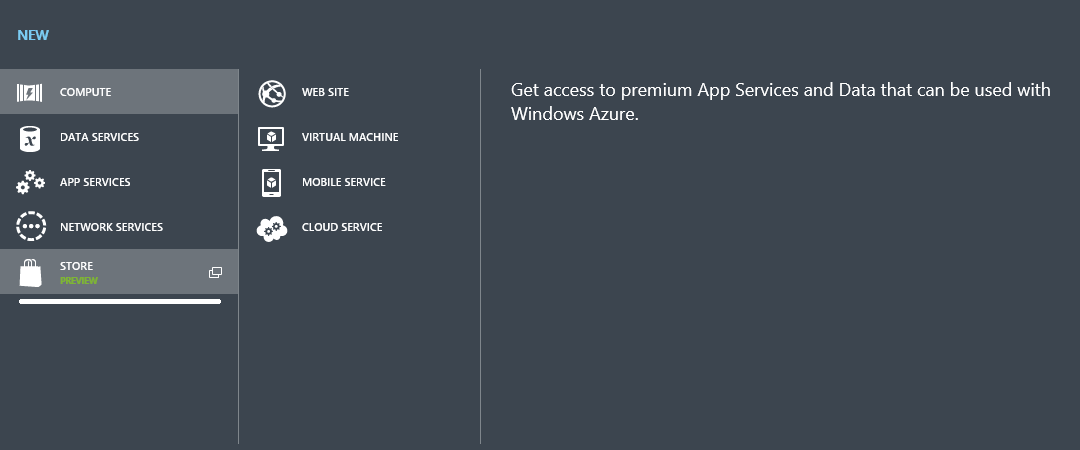
Select the “STORE” tab:
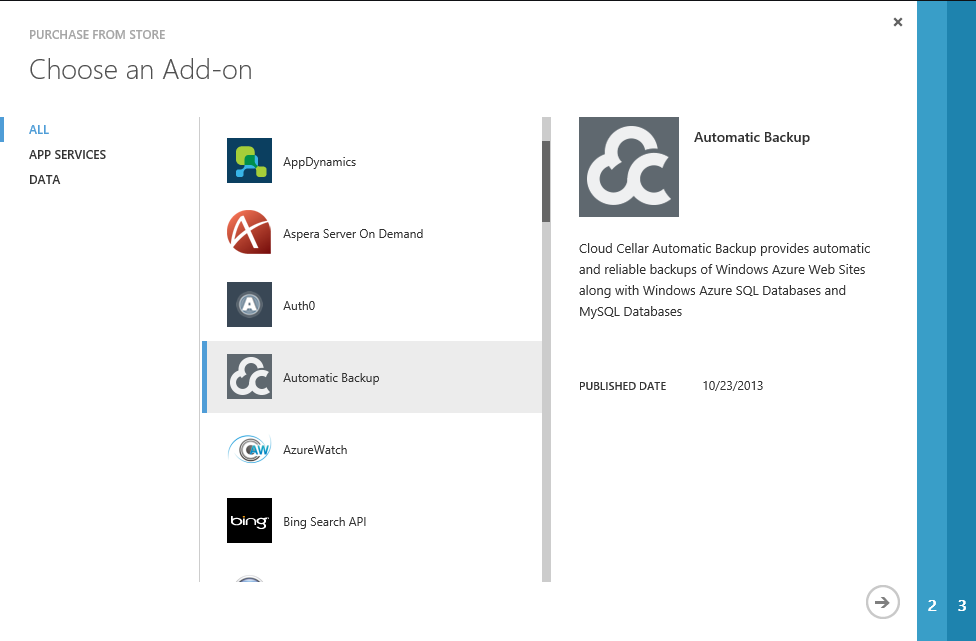
In the “Choose an Add-on” wizard page select “Automatic Backup”:
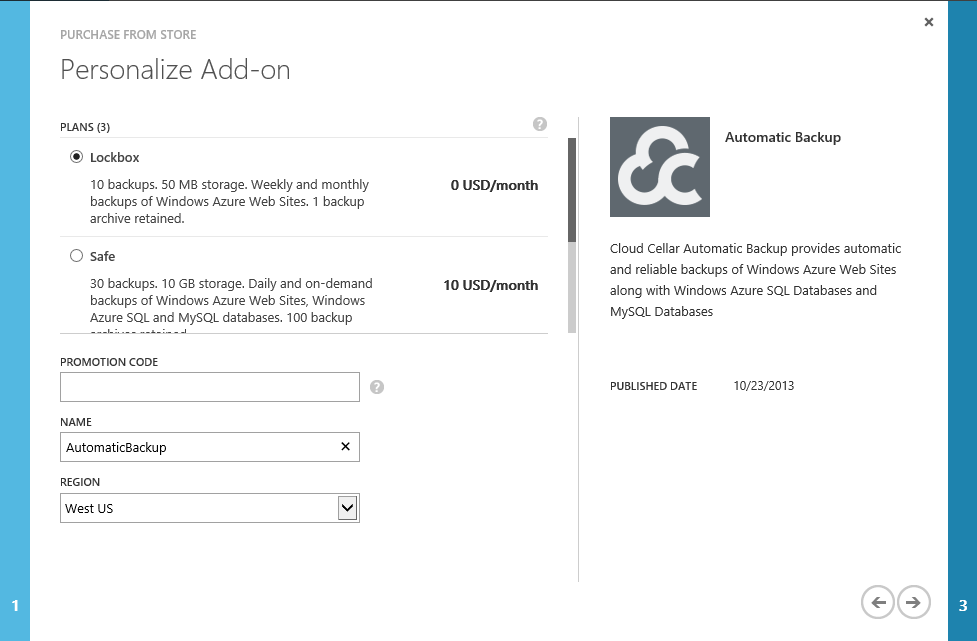
On next page select the plan that best suits your needs:
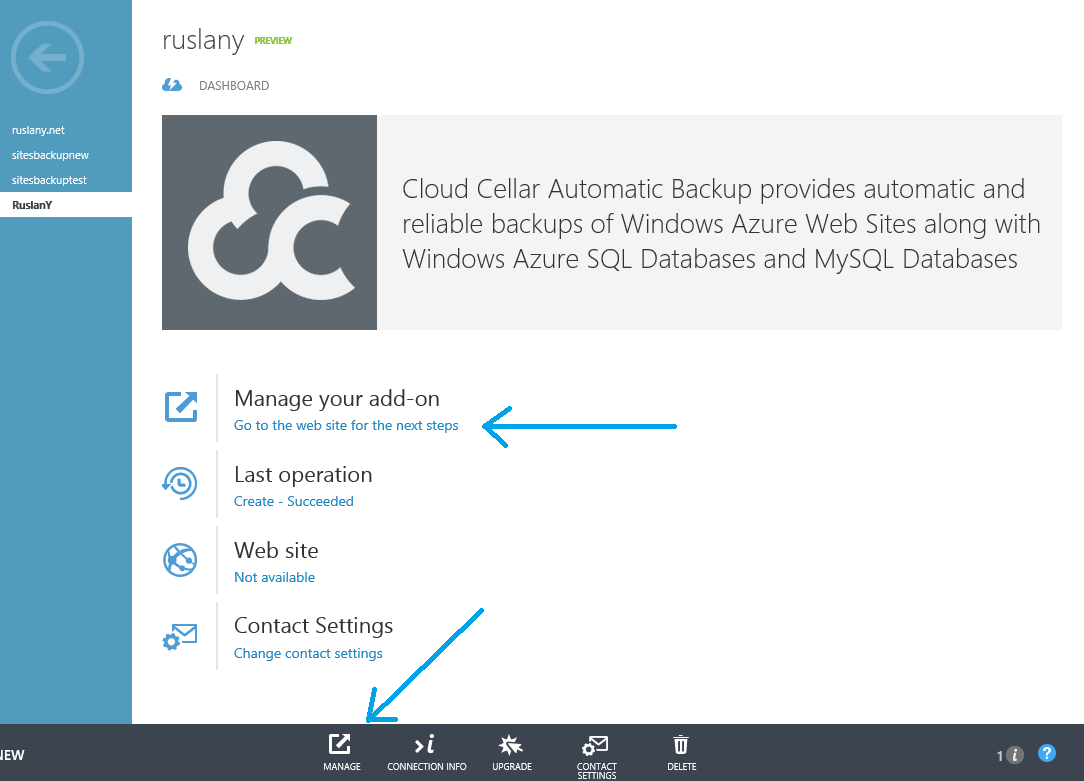
Complete the purchase and the newly purchased add-on will appear in the Add-Ons list view. Select it and then click “MANAGE” or “Go to the web site for the next steps”:
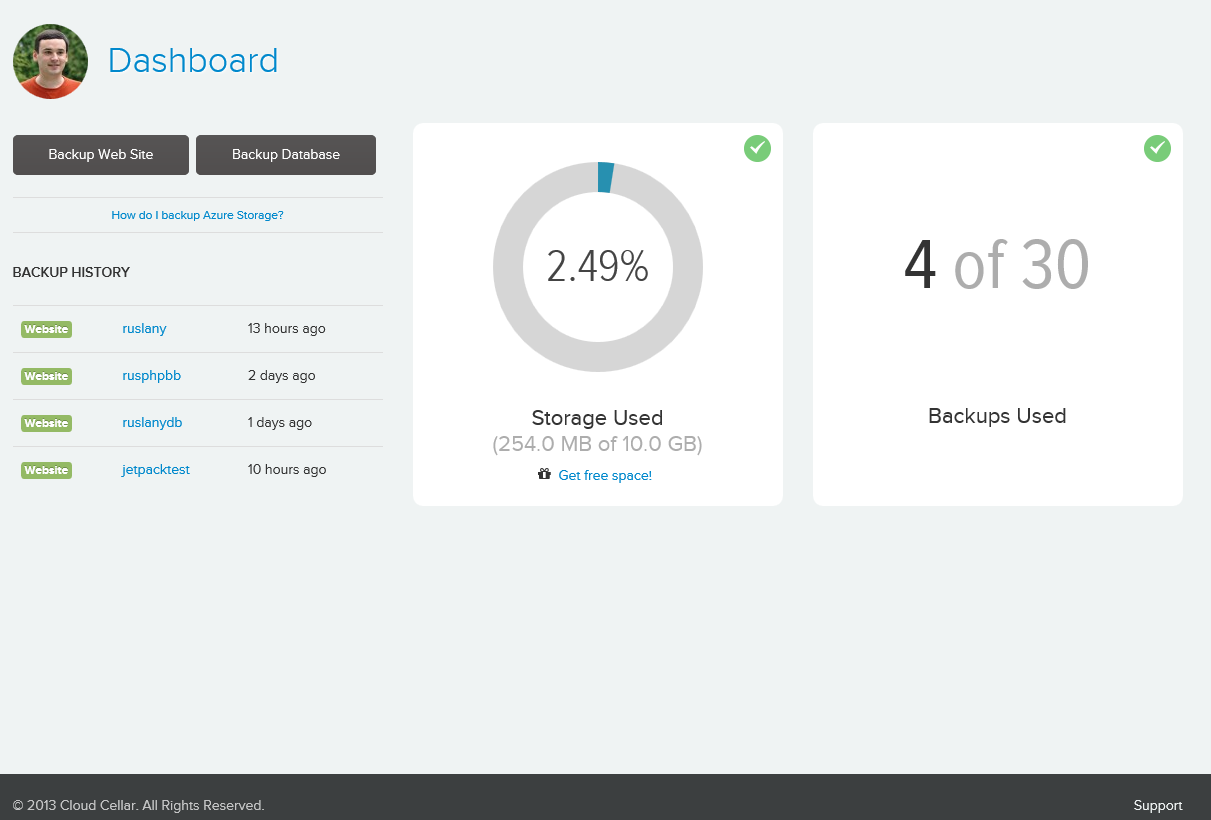
This will take you to the Cloud Cellar web site where you can setup backup tasks for your Azure Web Sites:
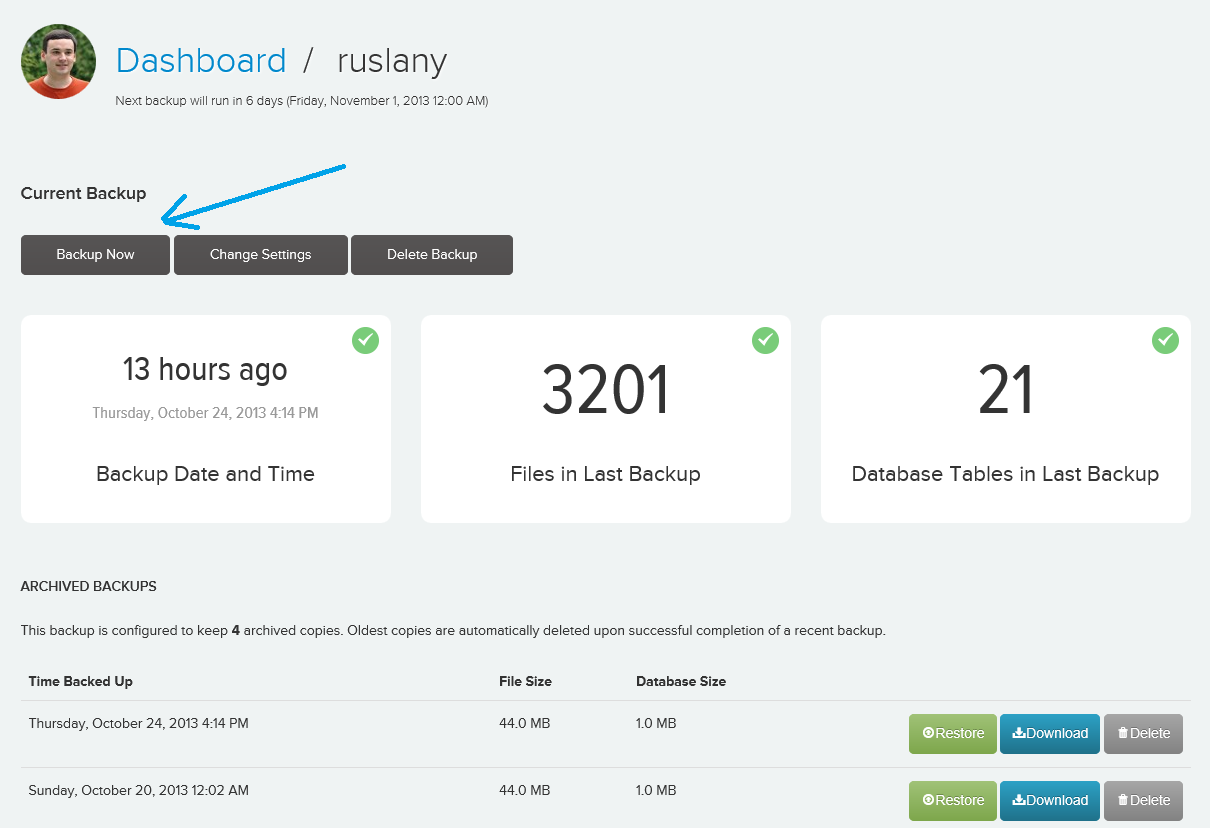
Depending on the plan that you select you can take advantage of various backup options. For example in Safe and Vault plans you can backup standalone Microsoft SQL Azure or MySQL databases. This is useful when your website is hosted in Azure Web Role and you want to keep a backup copy of its database. Another option available in those plans is On-Demand Backup, which you can trigger at any time. This can be used when you are about to deploy a new version of a site but want to snapshot the current site state “just in case”:
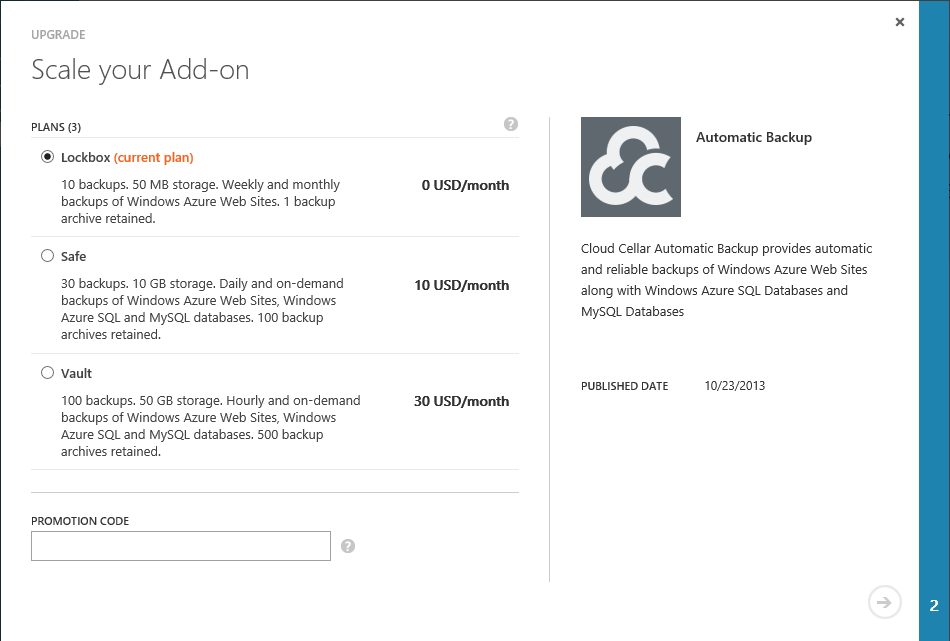
To enable those features as well as to get more frequent backups you can upgrade to Safe or Vaultplan from the Add-On dashboard page:

Wednesday, February 3, 2016

Backup the enter system disk into azure using backup vault


1. Create Windows Azure Backup Vault


  • To create the backup vault login to windows azure and from the left pane bottom section you can select "New" option, which in turn displays a new page for creating new items in windows azure.
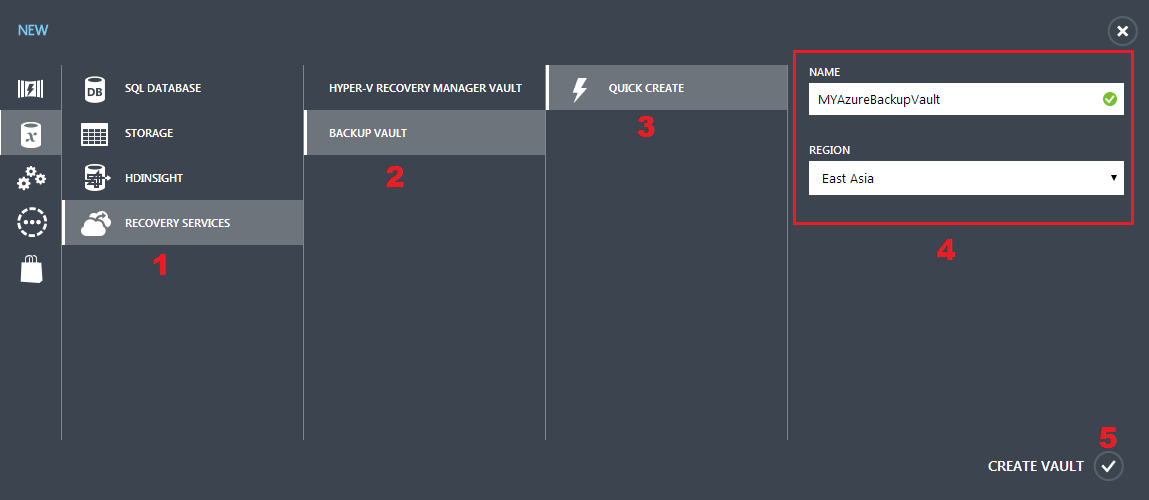
  • Now select DATA SERVICES -> RECOVERY SERVICES -> BACKUP VAULT -> QUICK CREATE as shown below,
Windows Azure Portal

  • Now the Windows Azure Backup Vault creation is completed.

2. Create certificate using makecert command

Windows Azure Backup Vault authenticates the servers using SSL certificate. We need to create a client authentication certificate using makecert. This certificate will be uploaded to the created backup vault. And also we need to install this certificate in the servers that will work with Windows Azure Backup Vault. Servers with this certificate can alone be registered with the created Windows Azure Backup Vault.

We need to store this certificate in secure place for future use. In case of the server crash, when we create a server and restore the backup items to the new server from the Windows Azure Backup Vault, we need to install this certificate to register with the Windows Azure Backup Vault.

The created certificate should have
  • Client athentication Enhanced Key Usage(eku)
  • Minimum of 2048 bit key length
  • Validity period less than 3 years

As a first step in Server1, let's create a certificate using the makecert command as given below,
makecert.exe -r -pe -n CN=CertificateName -ss my -sr localmachine -eku 1.3.6.1.5.5.7.3.2 -len 2048 -e 01/01/2016 YourCertificateName.cer
Checkout this link on options available in makecert command.
  • By default makecert.exe will not be available. MakeCert is available as part of the Windows SDK, which you can download from this link
  • After installing the Windows SDK, to create certificate you need to open command prompt and navigate to this path "C:\Program Files\Microsoft SDKs\Windows\v7.1\Bin" and execute the command as given below,
makecert command

  • Now the certificate creation is completed.

3. Export certificate to .PFX format

Now export this certificate to .PFX format and store it in a secure location different from this server for future use.

NOTE:

A .PFX file is an encrypted security file that stores secure certificates for authenticating people or devices. In simple words, .PFX file is a storage format which needs to be stored in a secured location and in future it can be changed to .CER format for website authentication.

A .CER file is a security file that is used to verify the authenticity of a website. In simple words, .CER is a deployable format for the authentication of a website.
Steps to export the certificate to .PFX format,
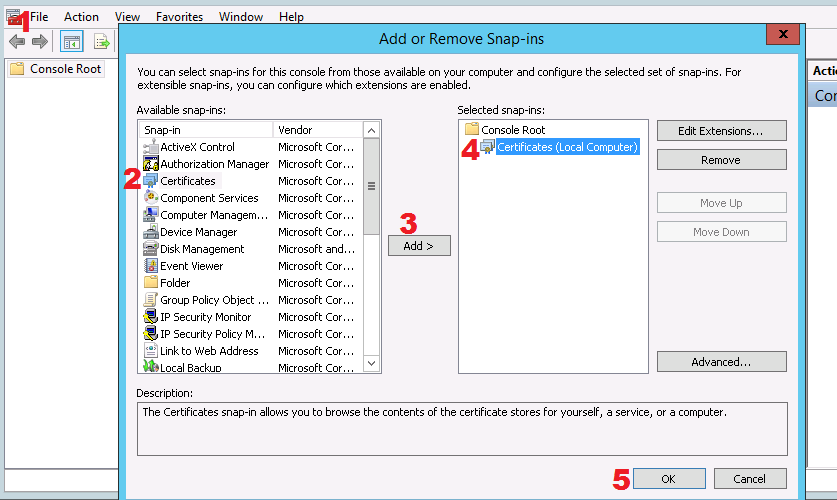
  • Open MMC and connect to Certificates snap-in as shown in the below screenshot,
mmc console

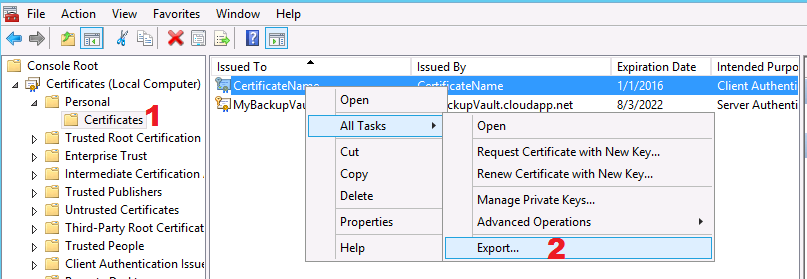
  • After connecting to the Certificates snap-in, in the left pane navigate to Personal Certificates folder and right click on the certificate created using makecert and export it as shown below,
mmc certificates

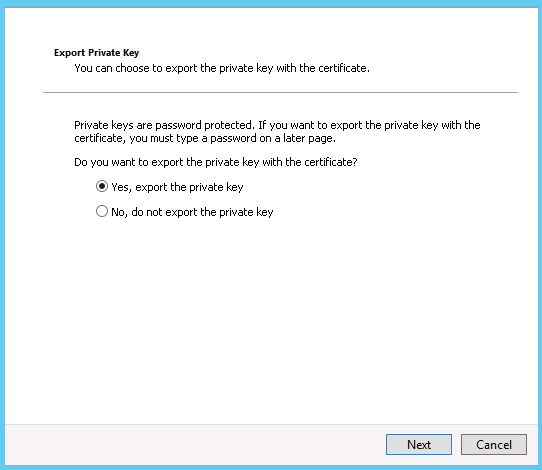
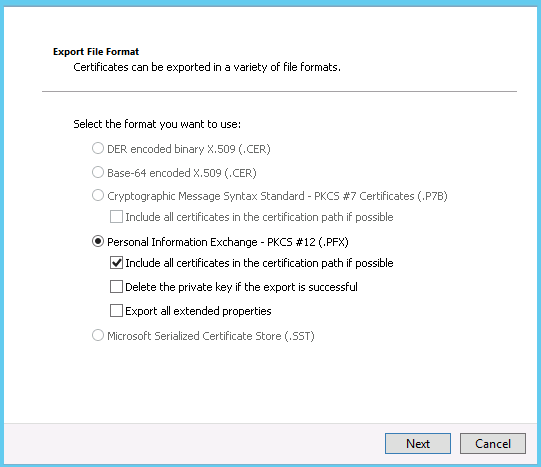
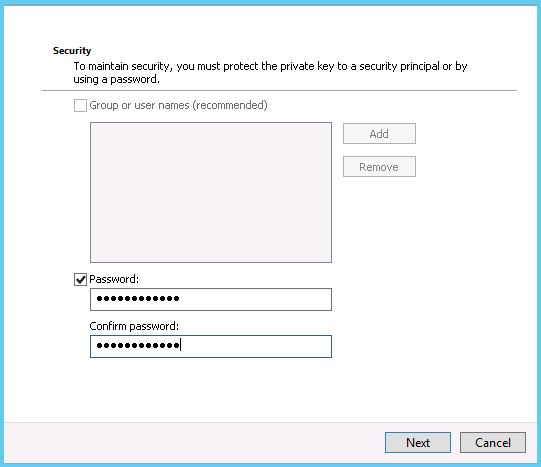
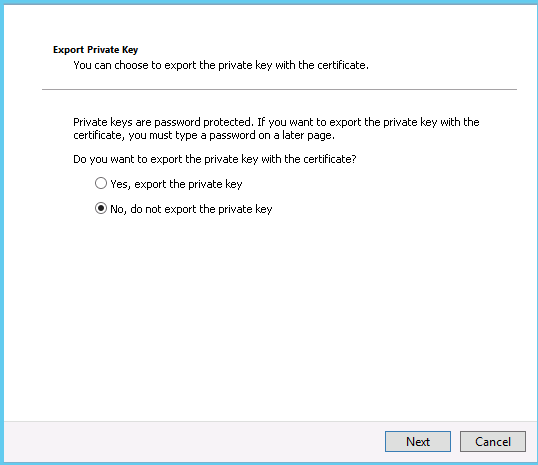
  • Now follow the below screenshots for steps to export the certificate in .PFX format from the Server1,
Export certificate private key

Export certificate file format

Secure certificate private key

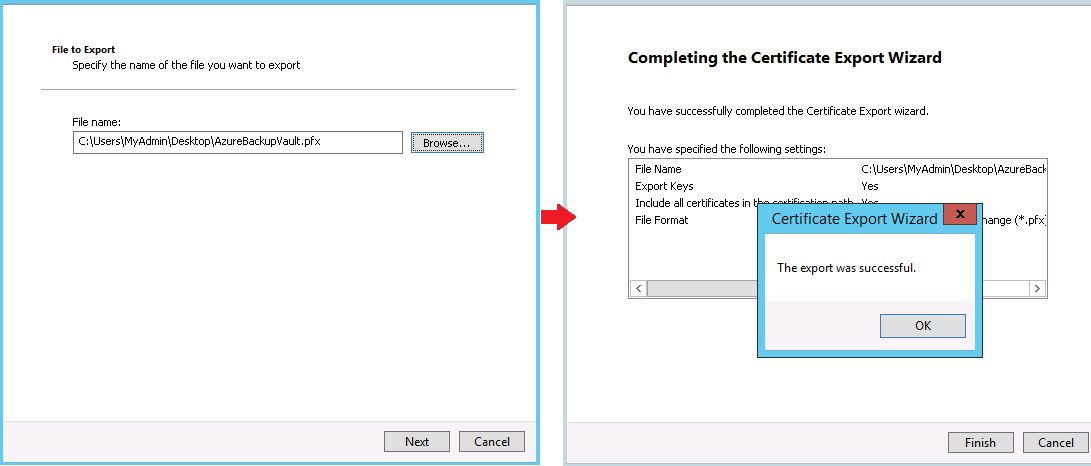
  • Finally browse the file path and export the certificate in .PFX format as given below,
Export certificate as pfx

  • Now the certificate is exported to .PFX format.

4. Export certificate to .CER format

In this section we will export the certificate to .CER format for uploading it to Windows Azure Backup.

Steps to export the certificate to .CER format,
  • For opening MMC and connecting the Certificates snap-in, you can repeat the first two steps as in section "Export certificate to .PFX format".
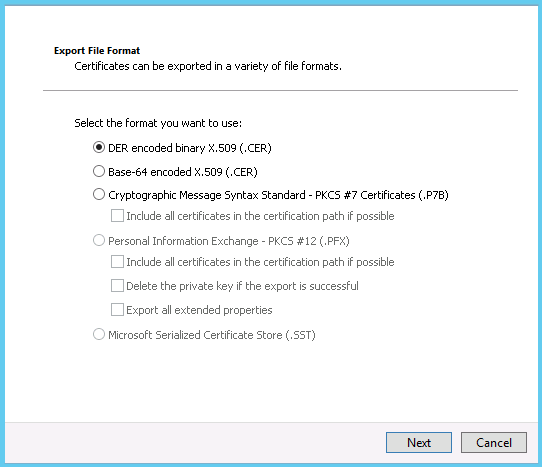
  • Now follow the below screenshots for steps to export the certificate in .CER format from the Server1,
Export CER private key

Export CER file format

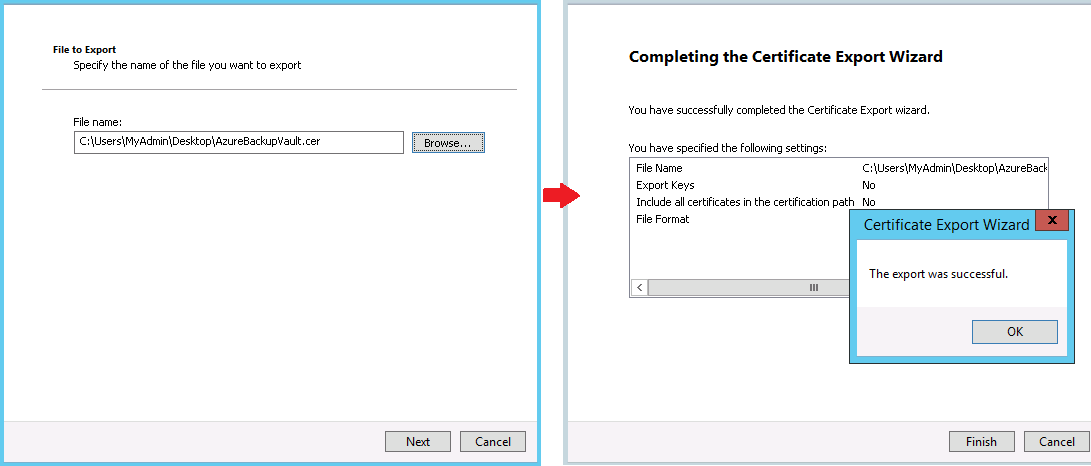
  • Finally browse the file path and export the certificate in .CER format as given below,
Export CER

  • Now the certificate is exported to .CER format.

5. Upload .CER certificate to Windows Azure Backup Vault

To create the authentication between the server and the windows azure, you need to upload the exported certificate in .CER format to Windows Azure Backup Vault.

Steps to upload .CER certificate to Windows Azure Backup Vault,
  • Now login to windows azure from the Server1.
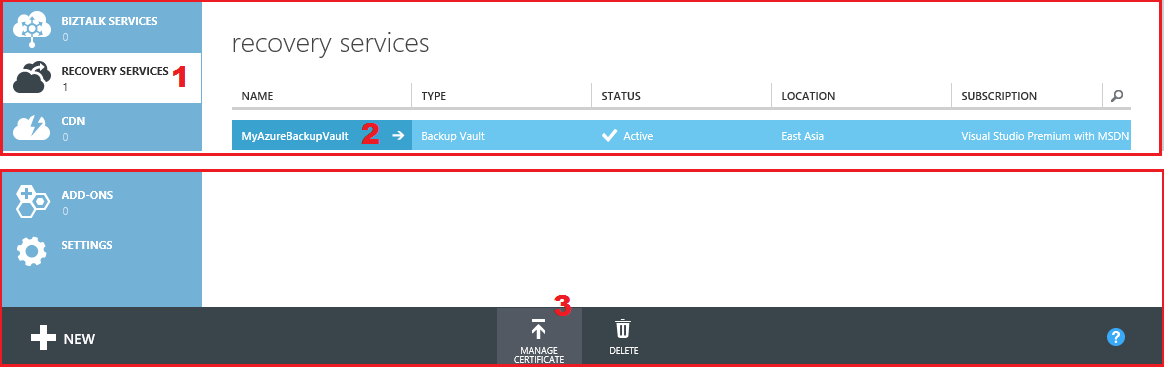
  • In the windows azure portal, from the left pane, navigate to Recovery Services and select the Backup Vault and click "Manage Certificate" as show below,
Manage certificate in portal

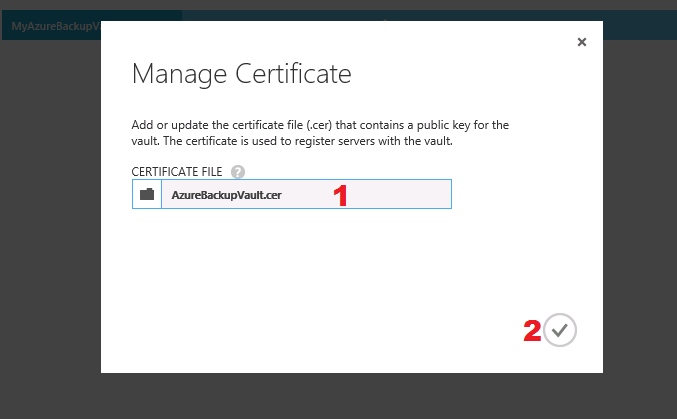
  • As a result, a pop-up appears, in which provide the file path of the certificate for uploading the certificate to the windows azure as shown below,
Upload CER in portal

  • Now the certificate is uploaded to windows azure, this confirms that the authentication is created between the server and the windows azure backup vault.

6. Download and Install Windows Azure Backup Agent


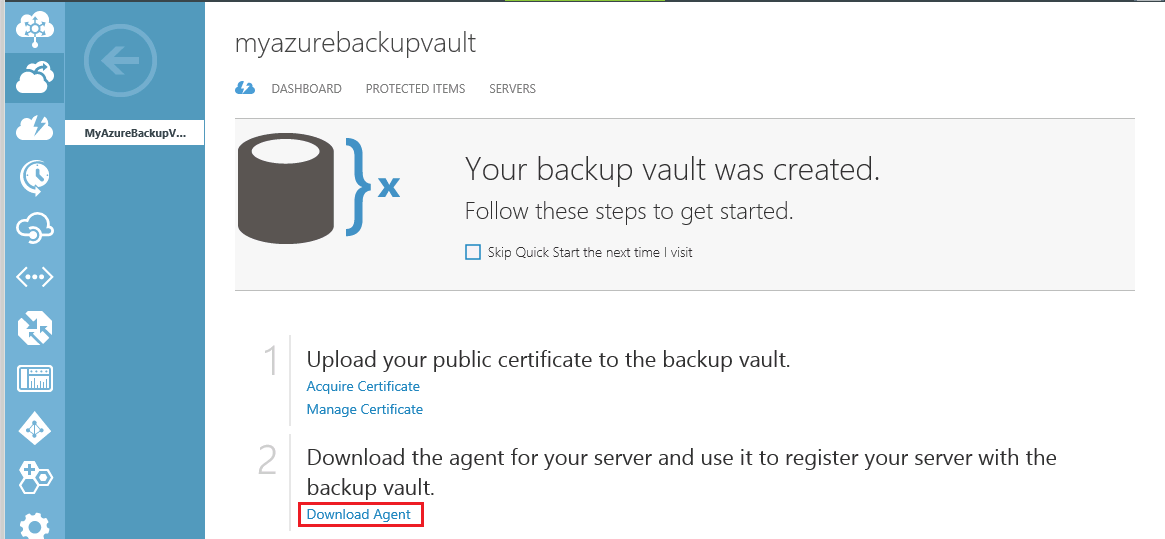
  • Now from Server1, login to windows azure and click the Backup Vault, this in turn opens a page with download link for Windows Azure Backup Agent as shown below,
Download Azure Backup Vault Agent

  • Once the agent is downloaded, you can run the setup. The setup name of the Windows Azure Backup Agent will be "WABInstaller.exe".
  • After the installation, you can access the Windows Azure Backup Agent using the desktop shortcut as shown below,
Backup agent desktop shortcut

  • Next step is registering the server to the Windows Azure backup Vault.

7. Register Server1 to Windows Azure Backup Vault


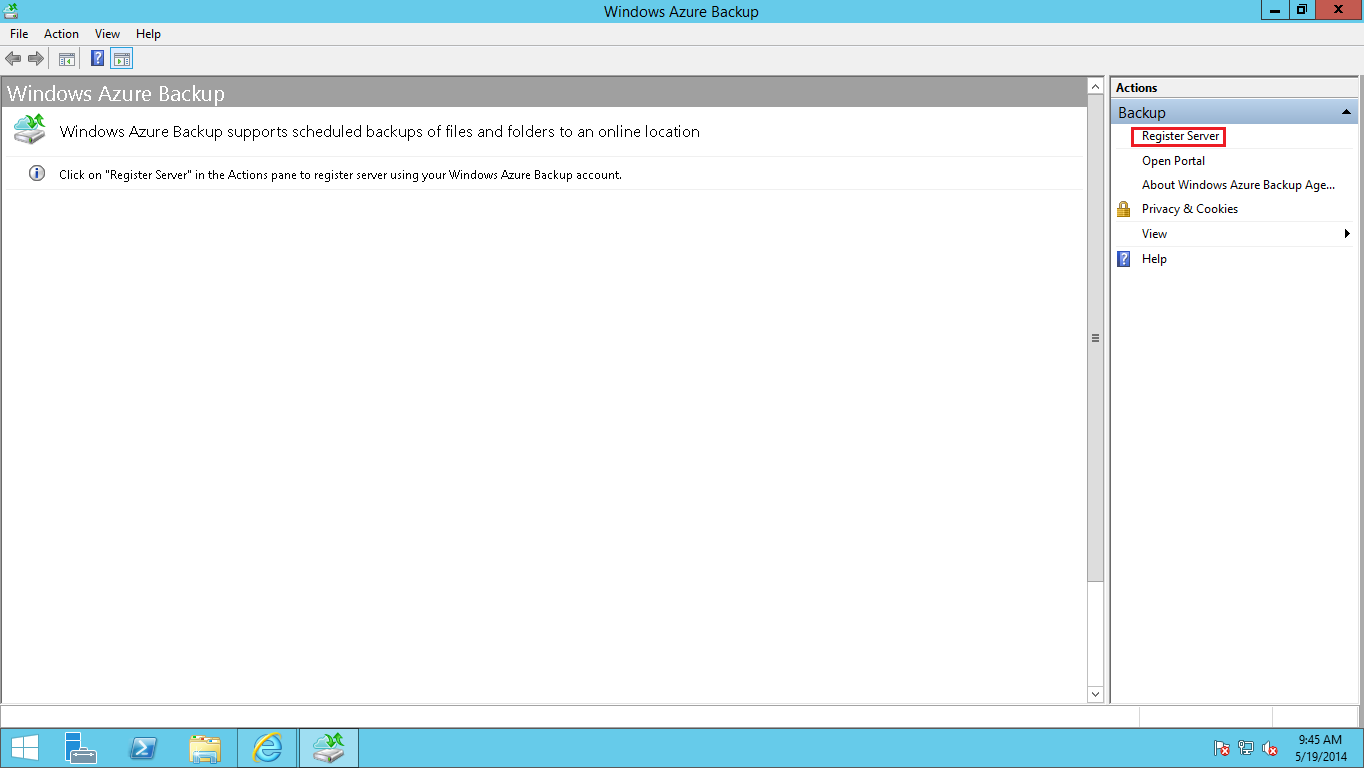
  • After opening the Windows Azure Backup agent, you need to register the server to the Backup vault by clicking "Register Server" option as shown below,
Register Server1 in Backup Vault

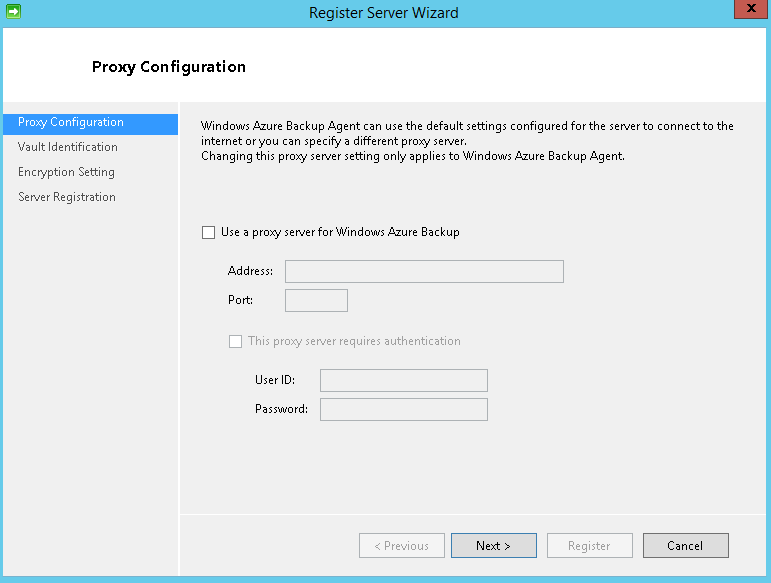
  • After clicking "Register Server" option, proxy configuration page appears; you can either configure or skip it,
Register Server1 proxy configuration

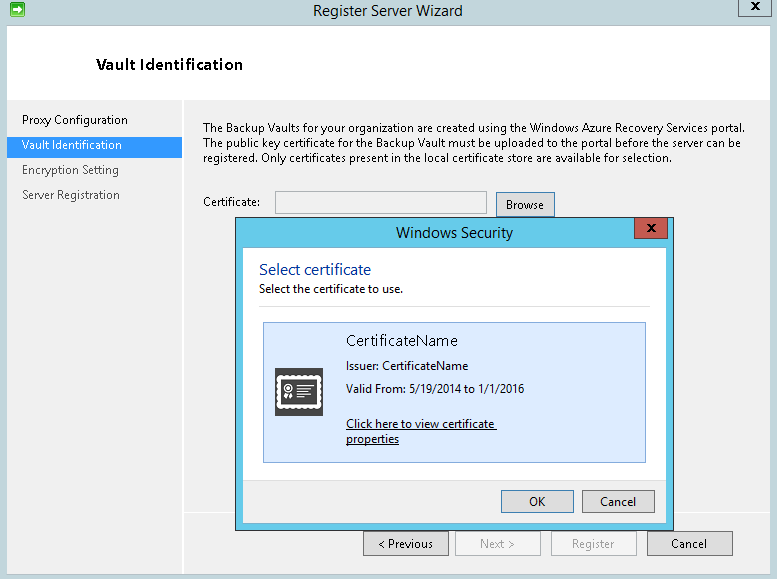
  • Browse for certificate to register with Windows Azure Backup Vault. Once you click browse, it will automatically detect the certificate as shown below,
Register Server1 vault certificate selection

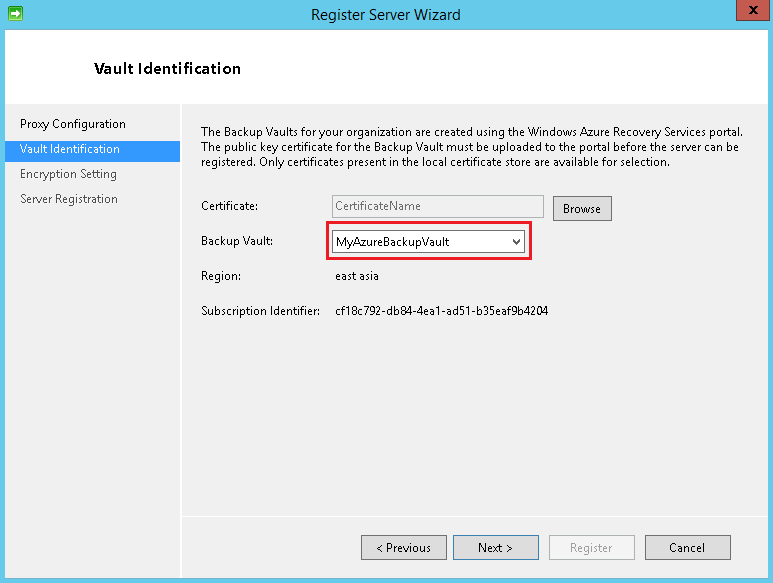
  • Once you click OK, certificate confirmation will take place and fetches the Backup Vault as shown below,
Register Server1 vault identification

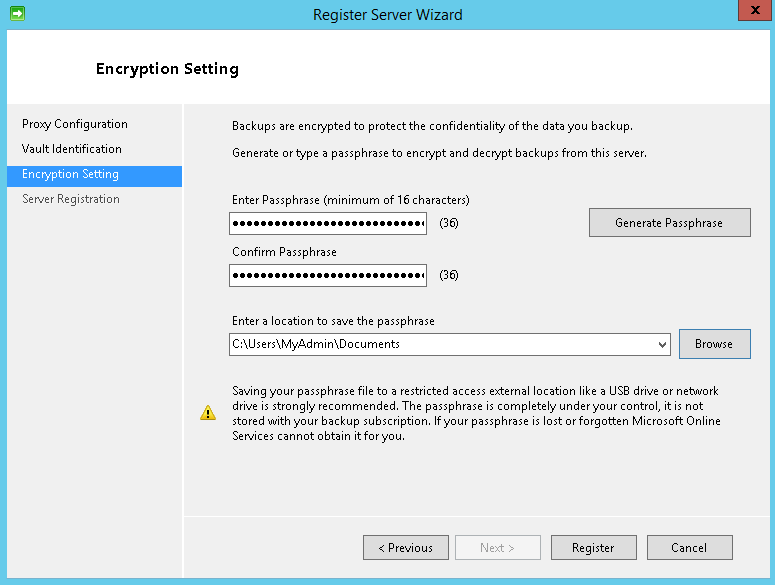
  • Finally provide the passphrase by clicking "Generate Passphrase", save the passphrase in a secured location and it should be in a different location from the data to be backed up. Finally click "Register" to confirm registration.
Server1 passphrase

  • After the above step, the server will be registered to Windows Azure Backup Vault. So that it can backup and recover data from Windows Azure backup Vault.
Note: The generated passphrase is used to encrypt and decrypt the backup files. The generated passphrase is needed when you restore the files from the Windows Azure Backup Vault, so store it in secure location for future use.

8. Scheduling Backup from Server1 to Windows Azure Backup Vault


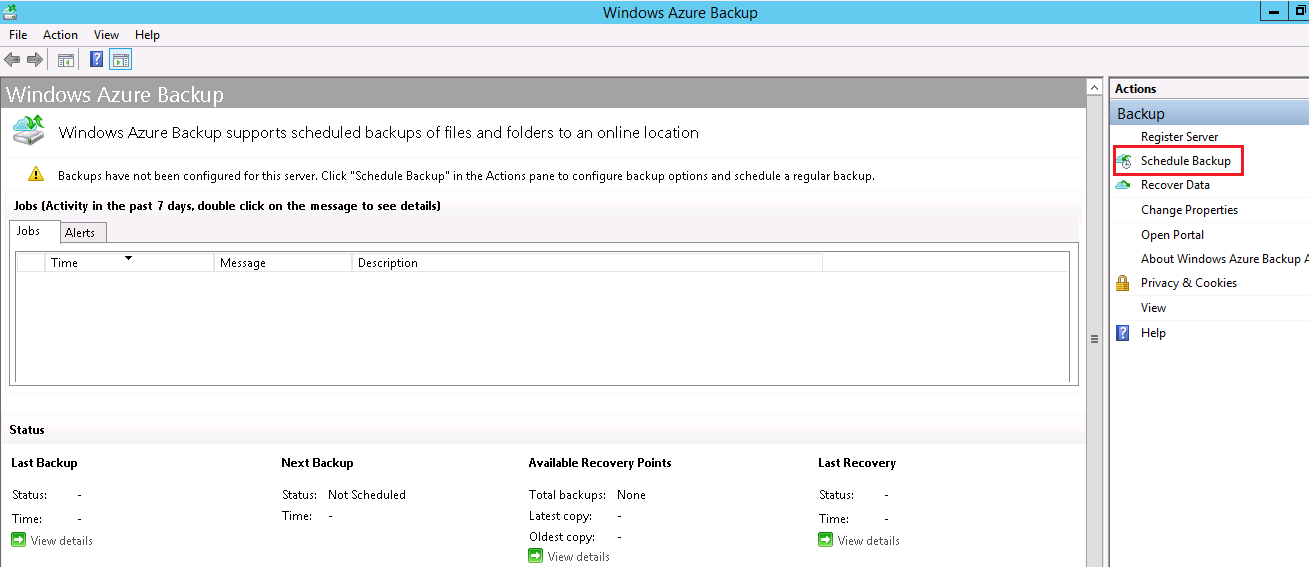
  • To schedule the backup from Server1, open the Windows Azure Back Agent and select the "Schedule Backup" option as shown below,
Schedule azure backup in Server1

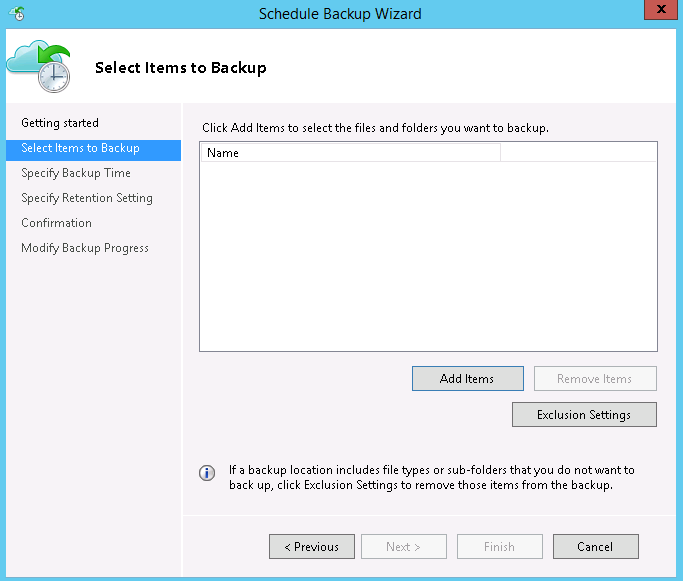
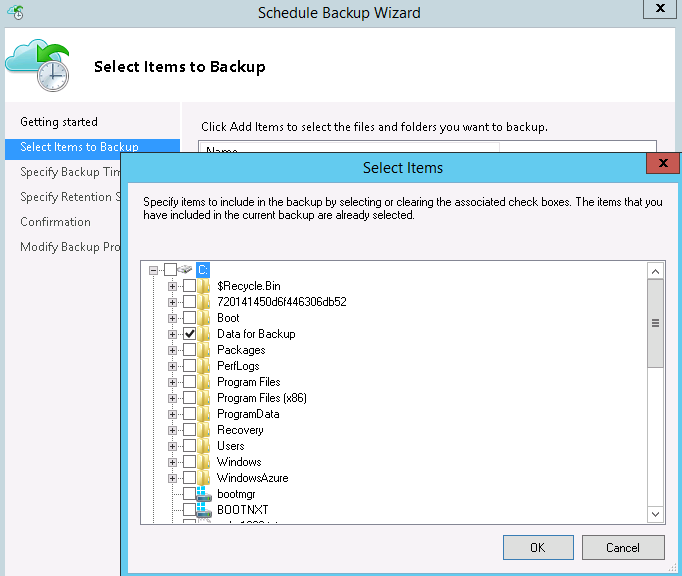
  • Here, I skip the "Getting Started Screen". So let's start with selecting the items for backup. Using "Add Items" you can add your required data for backup, also you exclude specific files or folders using "Exclusion Settings".
Select items to backup in Server1

  • Now I choose my data to be backed up in Windows Azure Backup Vault as shown below,
Backup items in Server1

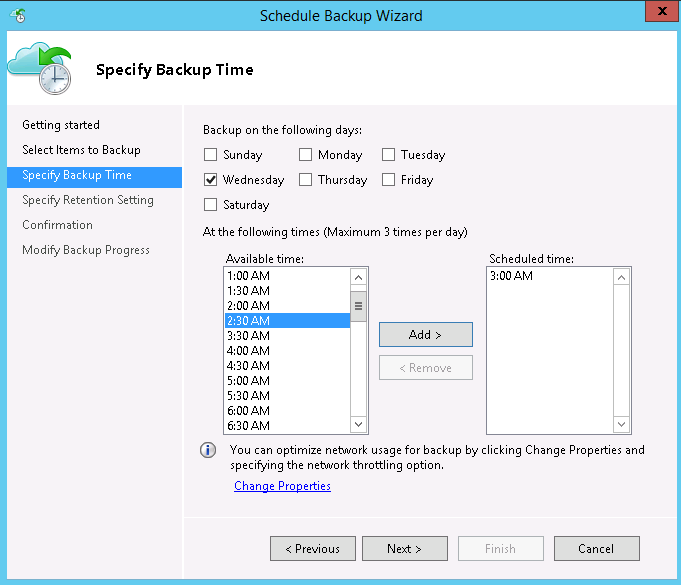
  • After the confirmation of data for backup, now specify the day of the week and time for running the backup schedule as shown below,
Backup time in Server1

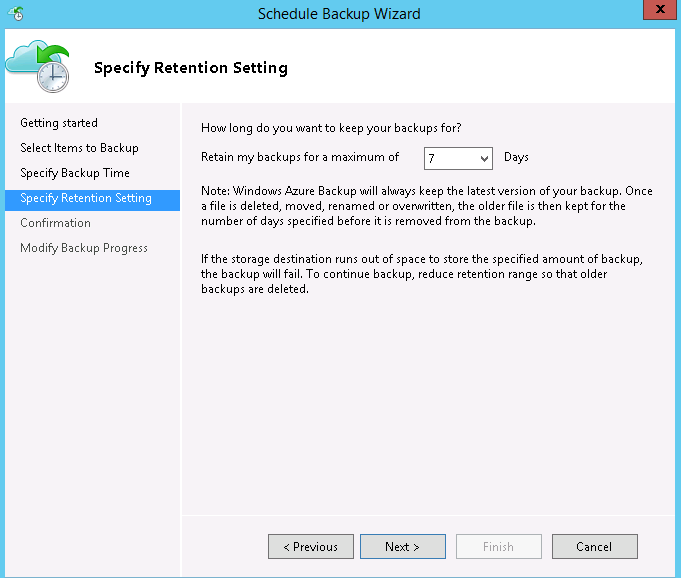
  • Now specify the days for backup retention, which indicates the files deleted, renamed, moved, then the older files will remain for the number of days as specified in this section.
Backup retention settings in Server1

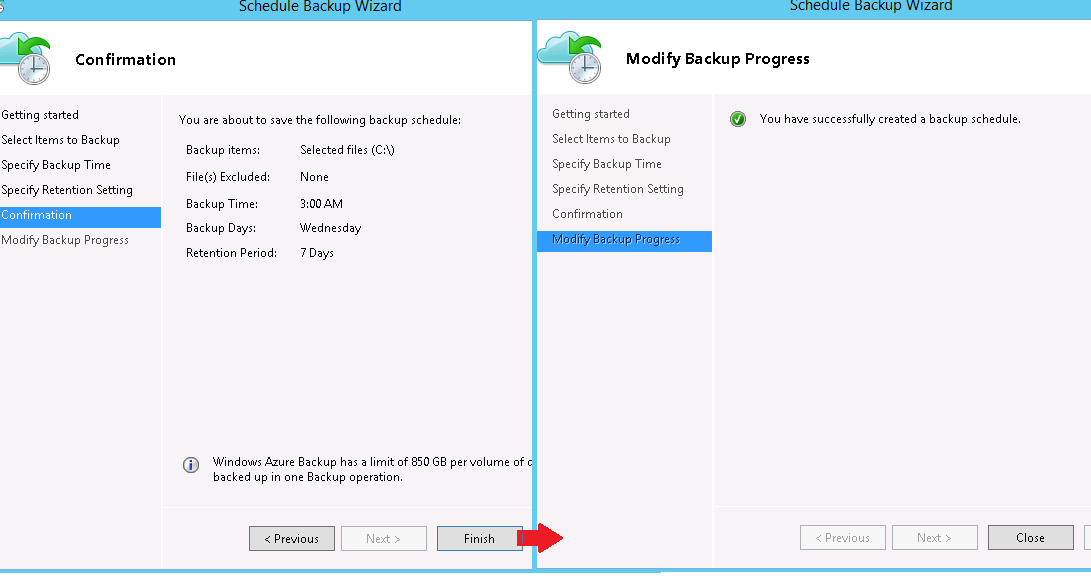
  • Finally the scheduling backup is completed, click Finish to confirm.
Finish backup configuration in Server1

  • Now the steps for scheduling backup to Windows Azure are completed.
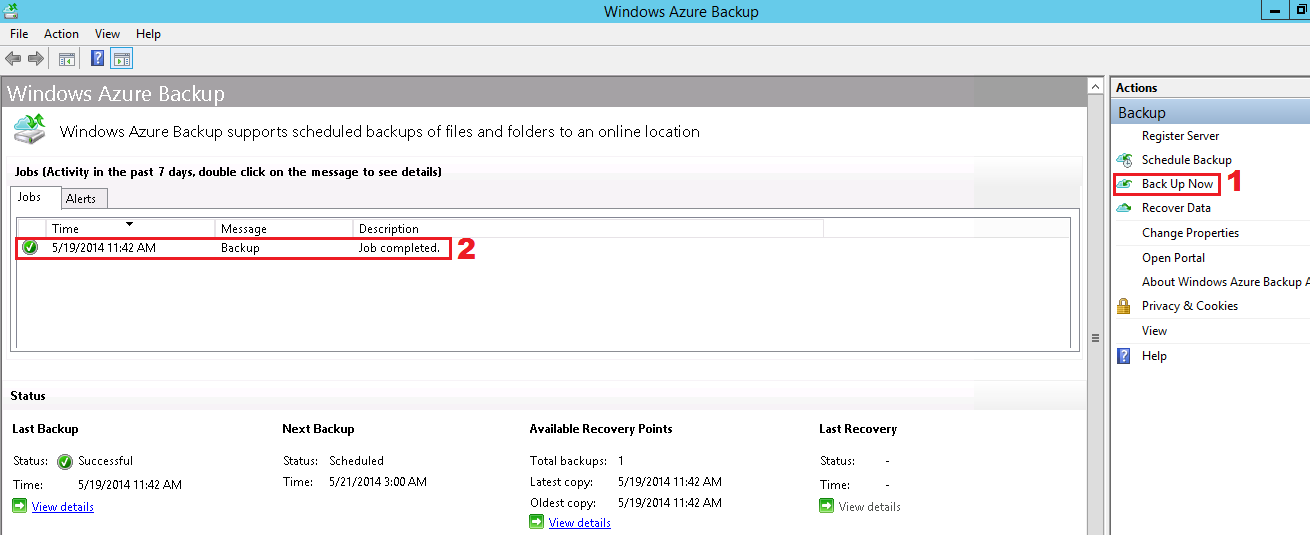
  • For testing purpose, let us force the backup to run using the “Back Up Now” option as shown below,
Run backup schedule in Server1

  • From the above screenshot, it is confirmed that a backup job has been successfully completed from Server1 to Windows Azure Backup Vault.

9. Server1 crashed

Now let's consider a situation that due to some reasons Server1 is crashed, but the data in Server1 are securely backed up to Windows Azure Backup Vault.

10. Recovering data from Windows Azure Backup Vault to Server2

Before recovering the backed up data to Server2, we need complete the following steps
  • Import the .PFX certificate exported from Server1 to this server
  • Download and Install Windows Azure Backup Agent in Server2
  • Register Server2 to Windows Azure Backup Vault
To import the .PFX certificate exported from Server1,
  • First copy the exported .PFX certificate from the secured location to this server.
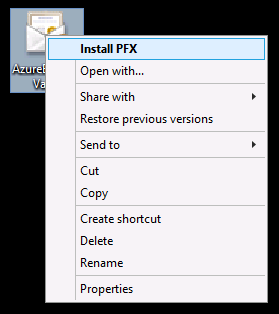
  • To import the certificate, right click the certificate and select "Install PFX" option as shown below,
Install PFX in Server2

Regarding the following steps,
  • Download and Install Windows Azure Backup Agent in Server2
  • Register Server2 to Windows Azure Backup Vault
You can repeat the same steps done for Server1 as specified in the sections 6. Download and Install Windows Azure Backup Agent and 7. Register Server1 to Windows Azure Backup Vault respectively.
  • After completing the above steps, we can recover the data backed up from Windows Azure Backup Vault.
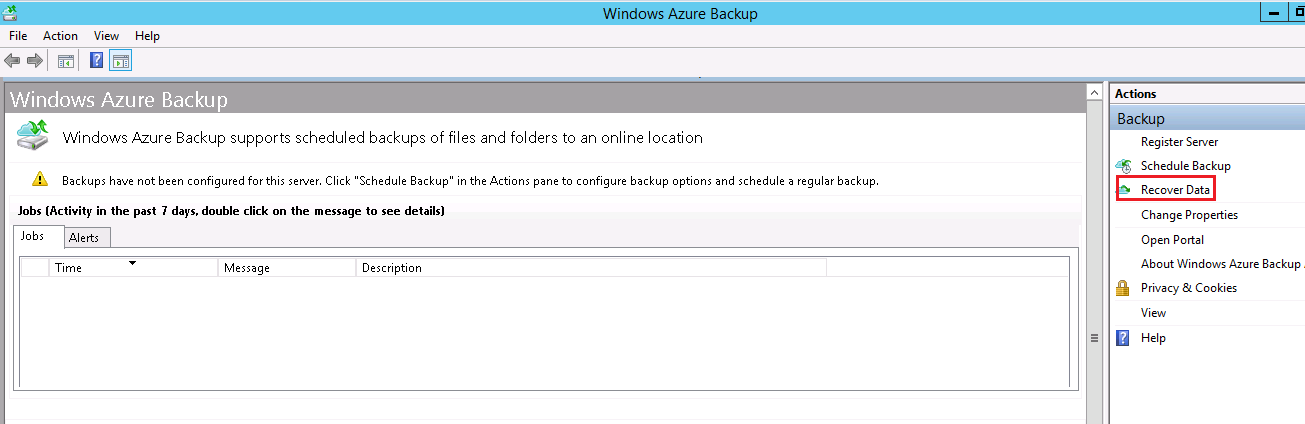
  • Now from Server2, you need to open the Windows Azure Backup Agent and select the recover option as shown below,
Recover backup data in Server2

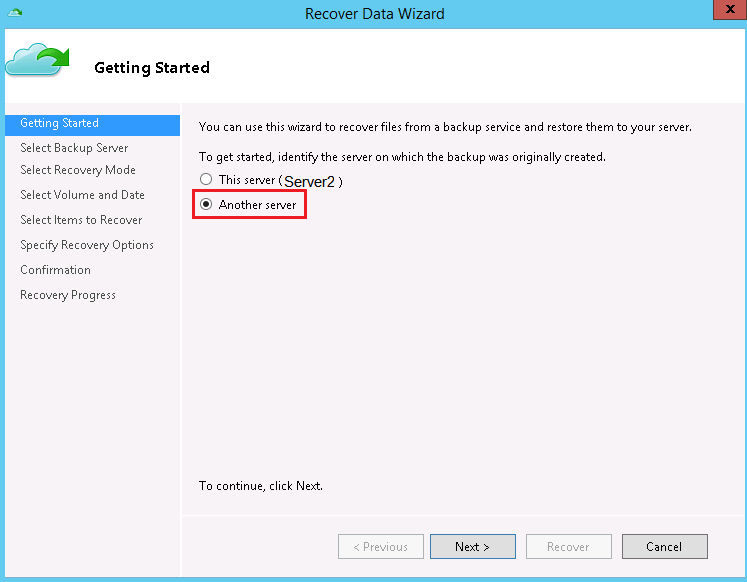
  • Now the Recover Data Wizard opens, since we need to recover data which is backed up from Server1, I select "Another Server" as shown below,
Select another server

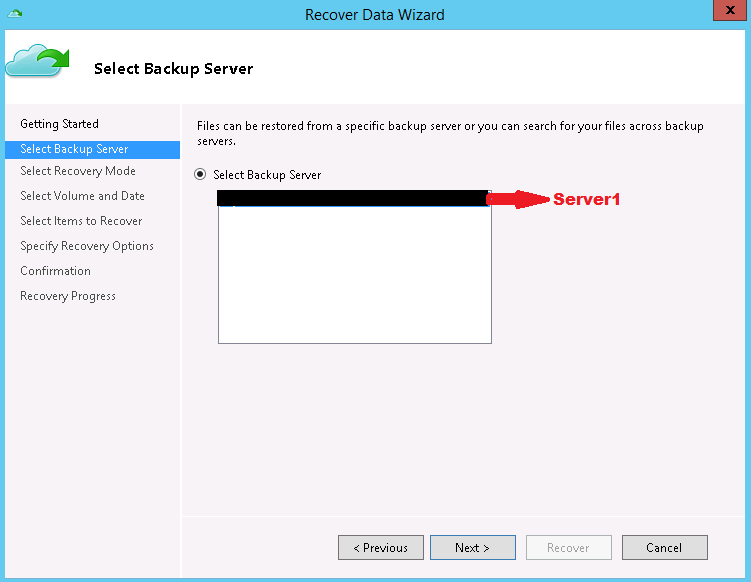
  • Now I select the Backup server as Server1.
Select Server1 as backup server

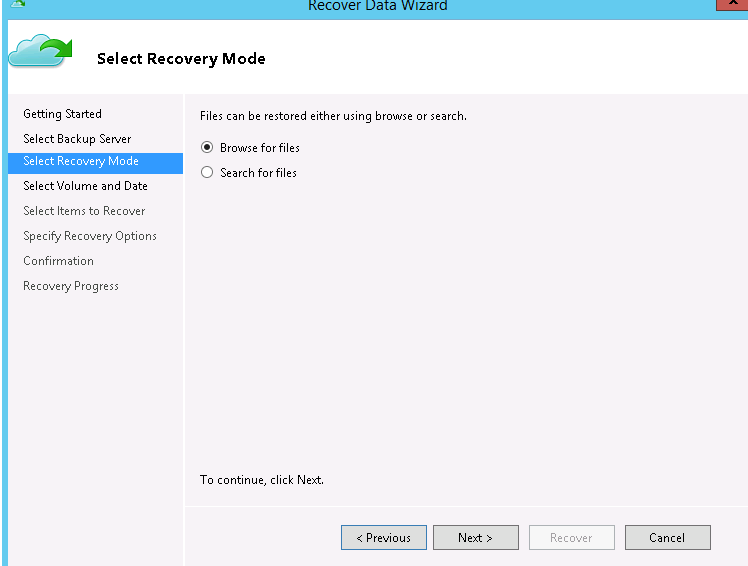
  • Now I browse for the files and select the volume to recover the backup data from Server1 as shown below,
Select recovery mode

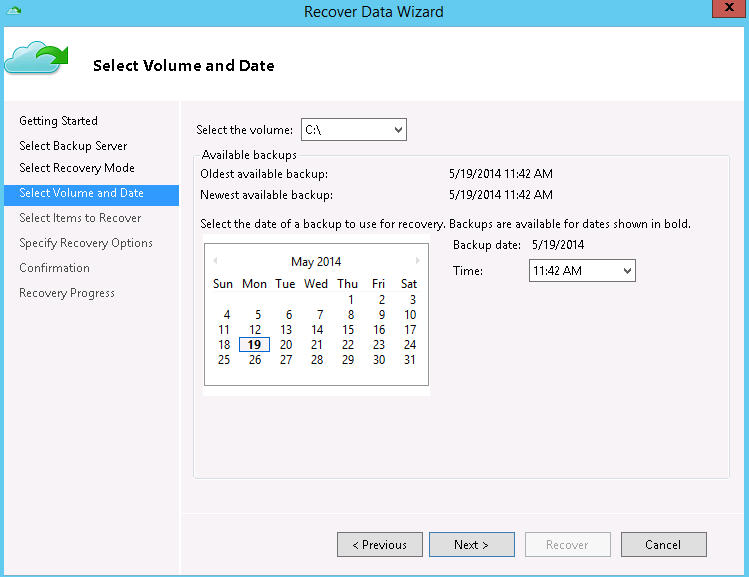
  • Now I select the volume and date of backup for recovering the data,
Select volume and date

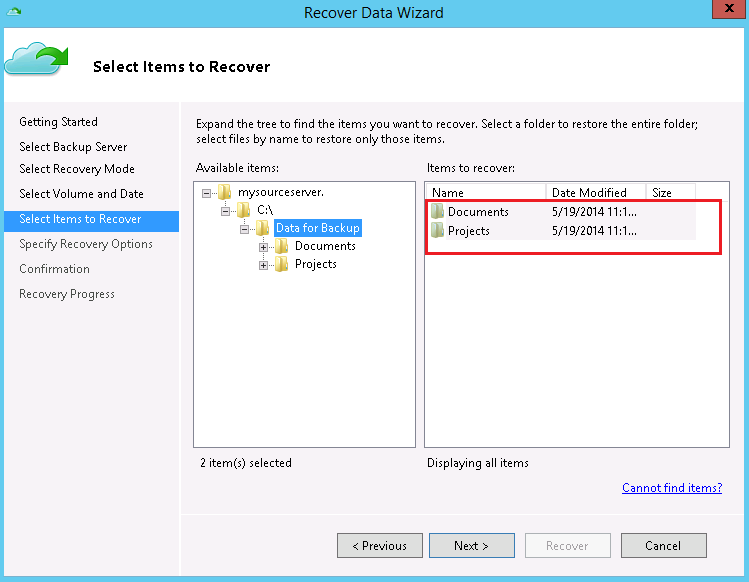
  • Now I select the items to recover,
Select items to recover

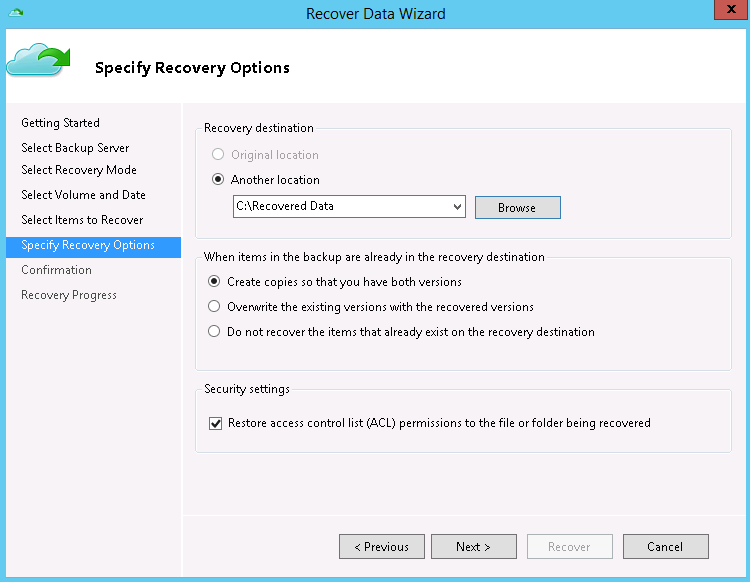
  • Now I select the recovery location and additional options,
Select recovery location

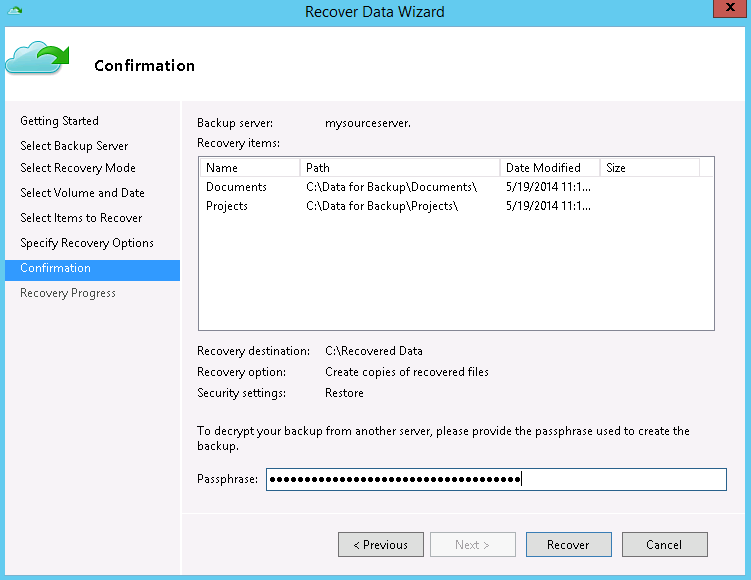
  • To confirm the data recovery from Windows Azure Backup Vault for the data backed up from Server1, copy and paste the passphrase from the passphrase file generated during Scheduling Backup in Server1,
Recovery confirmation

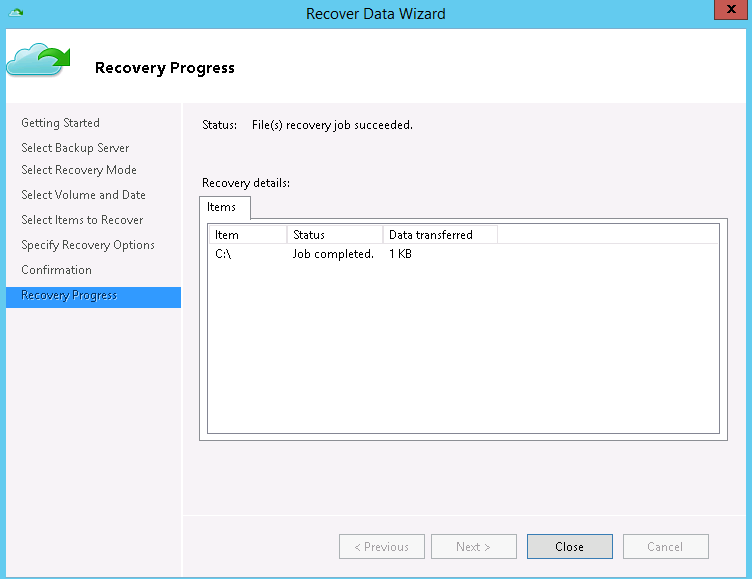
  • Finally the backed up data from Server1 is successfully recovered to the Server2 using Windows Azure Backup Vault.
Recovery progress